How to Edit Your Characters’ Voices
Customizing your characters’ voices helps you fine-tune tone, emotion, and personality to match your story. Follow the steps below to edit any character’s voice in your project.
Step 1 — Log In to Your Account
Start by signing in to your account on the platform. Once logged in, open your project where your characters are located.
Step 2 — Open the Director’s Note
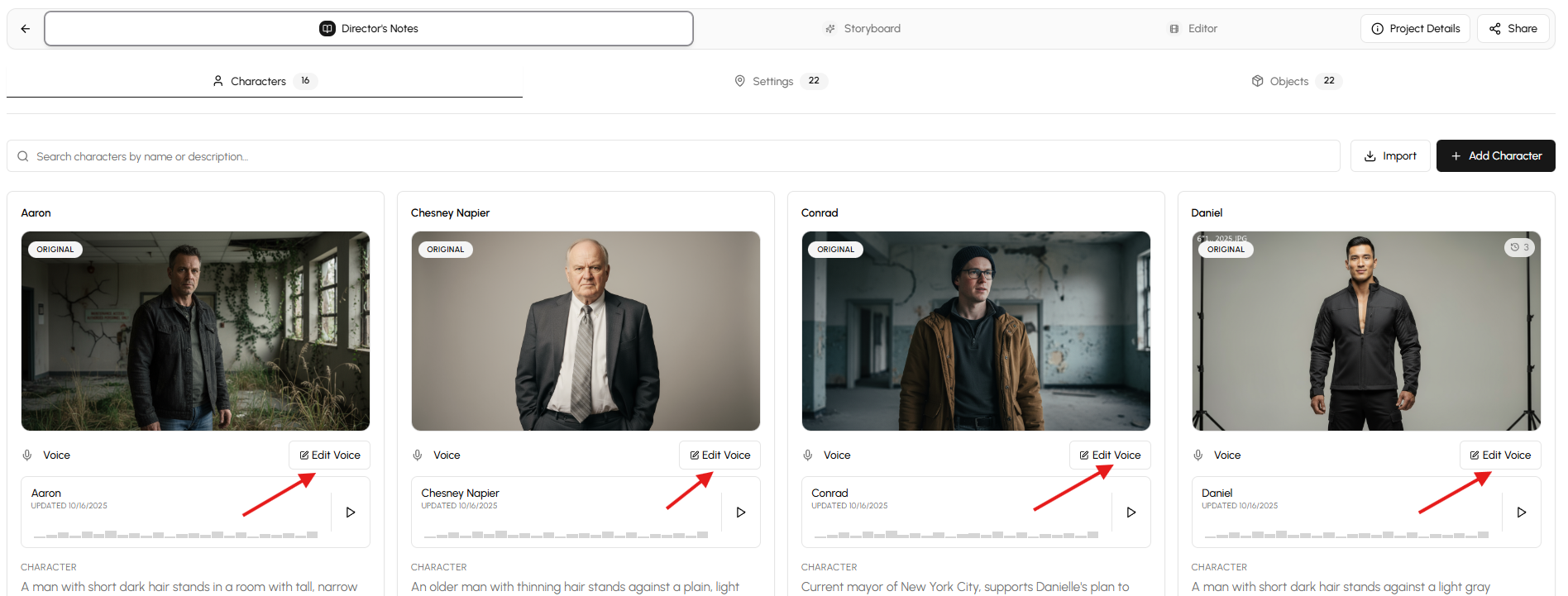
Inside your project, go to the Director’s Note section.
You’ll see an “Edit Voice” button next to each character.
Click Edit Voice for the character whose voice you want to modify.
Step 3 — Enter Voice Editing Notes
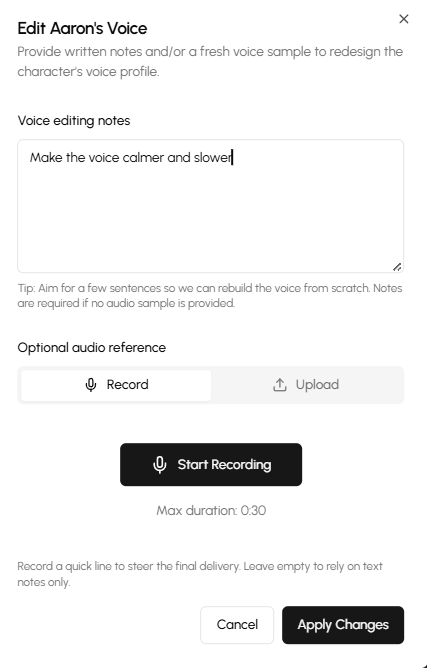
When the Edit Voice window opens, you’ll have two main options:
1. Voice Editing Notes
There is a text box labeled “Describe how you want the voice to change—tone, pacing, accent, emotional range, references, etc.”
Here, you can write instructions such as:
- “Make the voice calmer and slower.”
- “Add a slight British accent.”
- “Increase emotional warmth.”
2. Optional Audio Reference
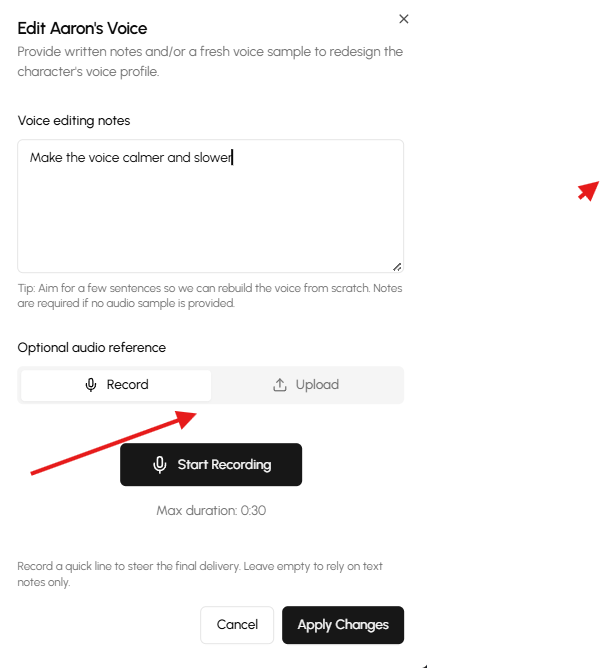
You can:
- Record a sample directly, or
- Upload an audio file
This helps guide the system toward the exact tone or style you want.
Step 4 — Apply Changes
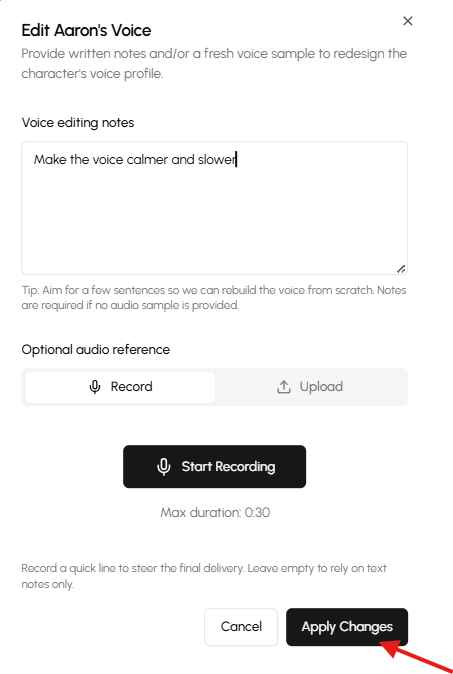
Once you’re satisfied with your notes or audio reference, click “Apply Changes.”
Your character’s voice profile will be updated based on the information you provided.