
How to Merge Your Character, Objects & Settings In Director's Notes
1. Log In and Access Director’s Note
- Log in to your account and go to Director’s Note.
- From there, open the section where your characters are listed.
-
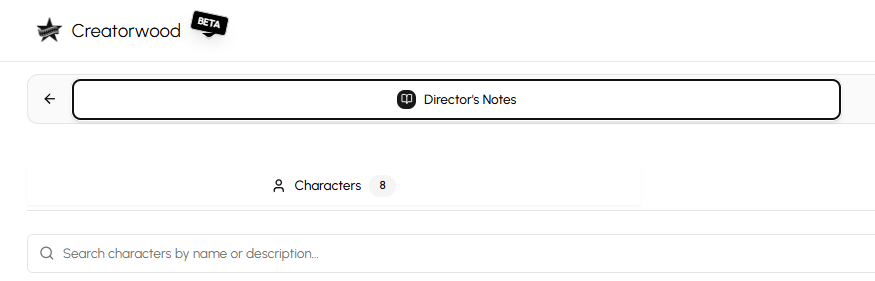
2. Select the Character to Merge
- Choose which character you want to merge with, you can see it under + Add Character
- You can edit the character’s name, aliases, and add any merge notes as needed.
-
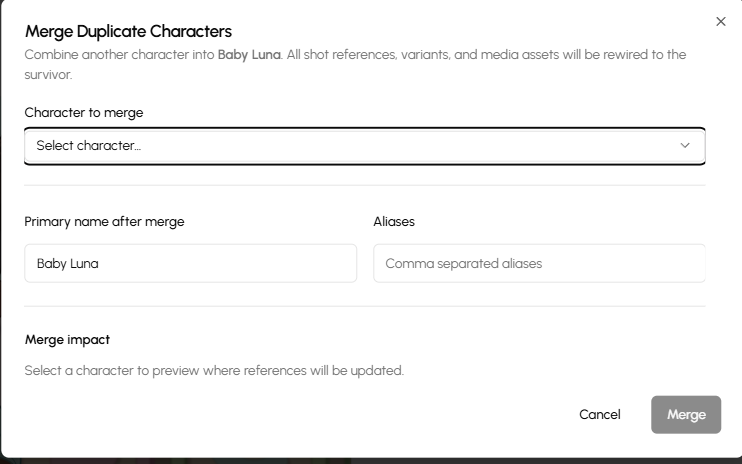
3. Review Affected Shots
- The system will show all shots that will be affected by the merge.
-
Take a moment to review these before confirming.
4. Confirm the Merge
- When you confirm, the merge will also combine both characters’ histories.
- For example, if you merge Character 1 and Character 2, and Character 1 becomes the primary character, all of Character 2’s voices, images, and versions will now appear under Character 1’s profile.
5. Automatic Updates
- All affected shots in the storyboard will automatically update.
- Any shot that previously used Character 1 or Character 2 will now use the merged character.
This applies to Settings and Objects too!
For Settings
- Go to Director's Notes and select Settings

Once you select the setting you want to merge you will see the merge on the right corner below the settings.
- Select the settings you want to merge then click Merge.

For Objects
-
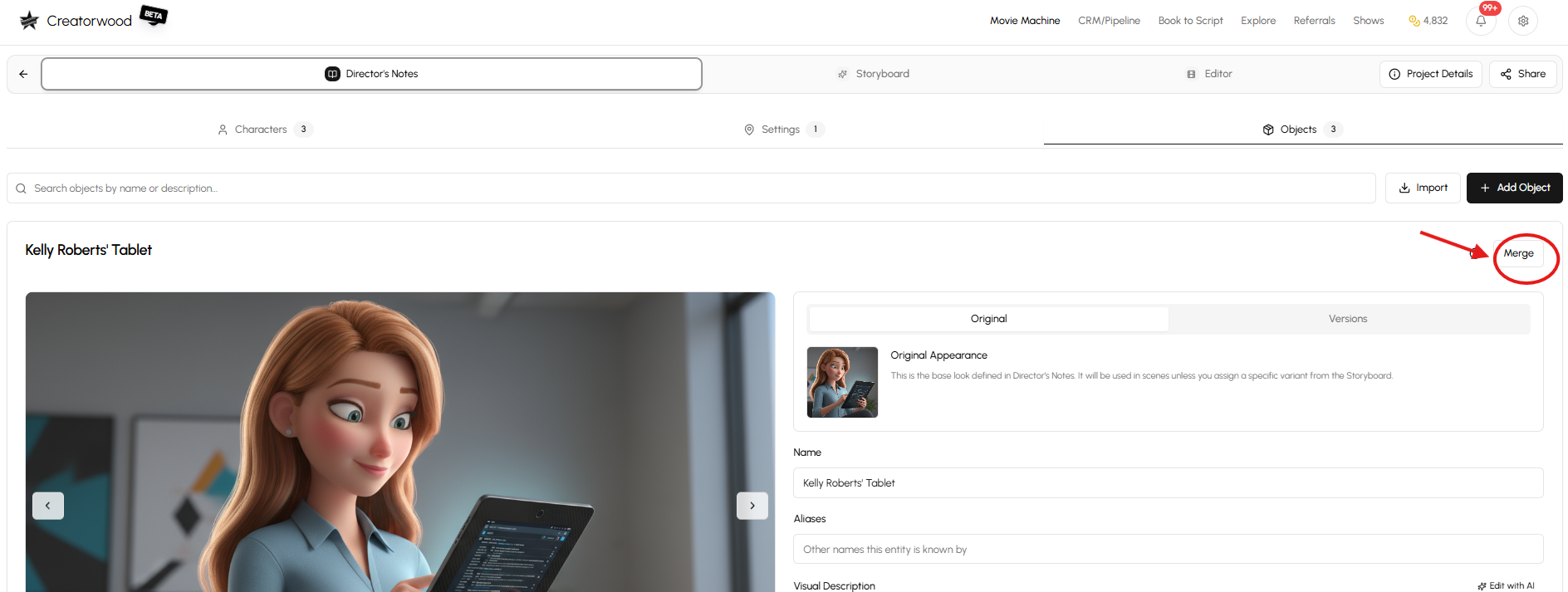
Go to Director's Notes and select Objects.
-
Select the Object you want to merge.
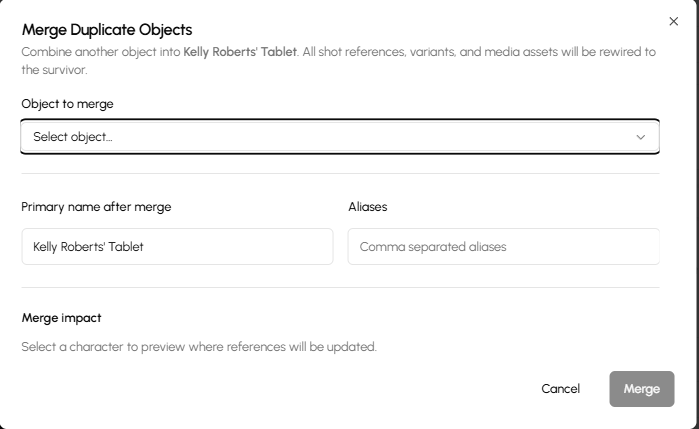
- Select Merge.
And You're Amazing!!!