
How To Create Versions for Characters, Locations, and Props in Creatorwood
Creating variations of your characters, locations, and props is essential for maintaining visual consistency and unlocking creative possibilities in your project. Creatorwood makes this process easy with intuitive tools directly inside your Director’s Notes.
Follow the steps below to start generating versions with ease.
Step 1: Log In to Your Creatorwood Account
Start by signing in at: https://www.creatorwood.tv/sign-in
Once logged in, you’ll be taken to your dashboard where all your projects are stored.
Step 2: Open Your Project and Go to Director’s Notes
Select the project you want to work on.
In the project workspace, navigate to Director’s Notes — this is where you can manage and refine all your creative elements.

Step 3: Choose the Character You Want to Create Versions For
Inside Director’s Notes, select the character you want to modify or expand.
You’ll see the original character generated by our AI model.
Click Versions to open the version-creation tools.

Step 4: Create a New Version
Once inside the Versions section, you have two ways to generate a new version:
Option 1: Text Instructions
Use this option when you have a clear idea of how you want your new version to look.
-
Type detailed instructions describing the version you want.
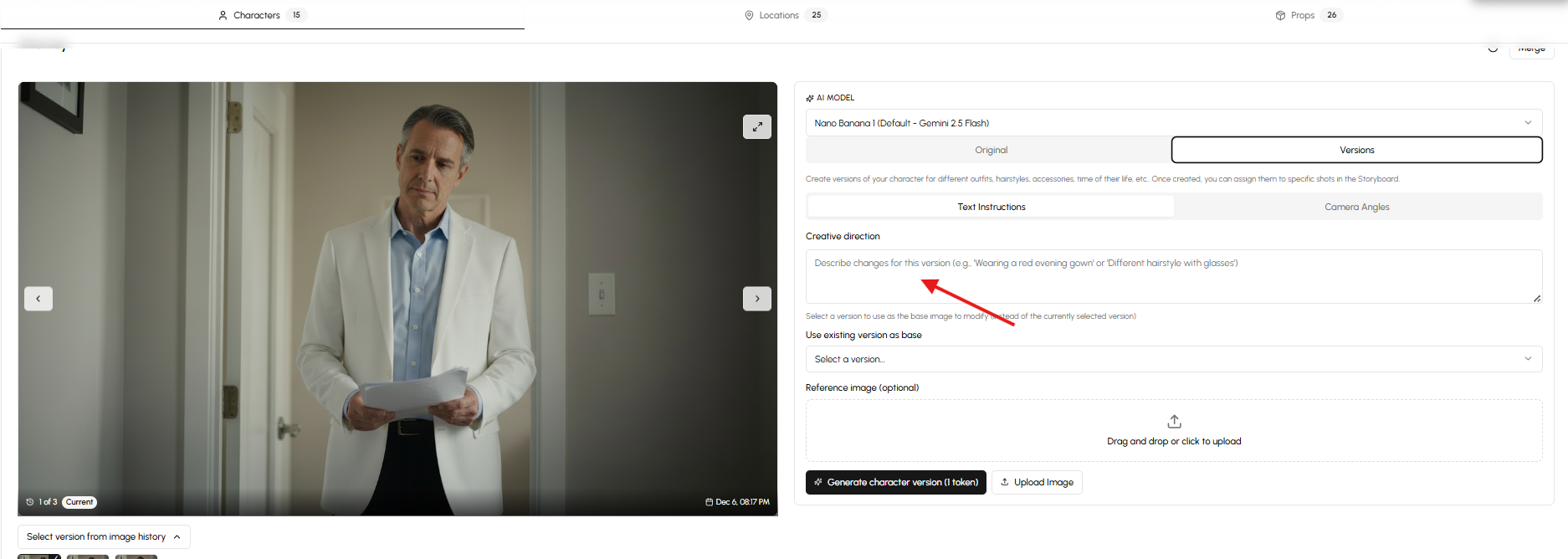
-
If desired, you can upload an image as a supporting reference.
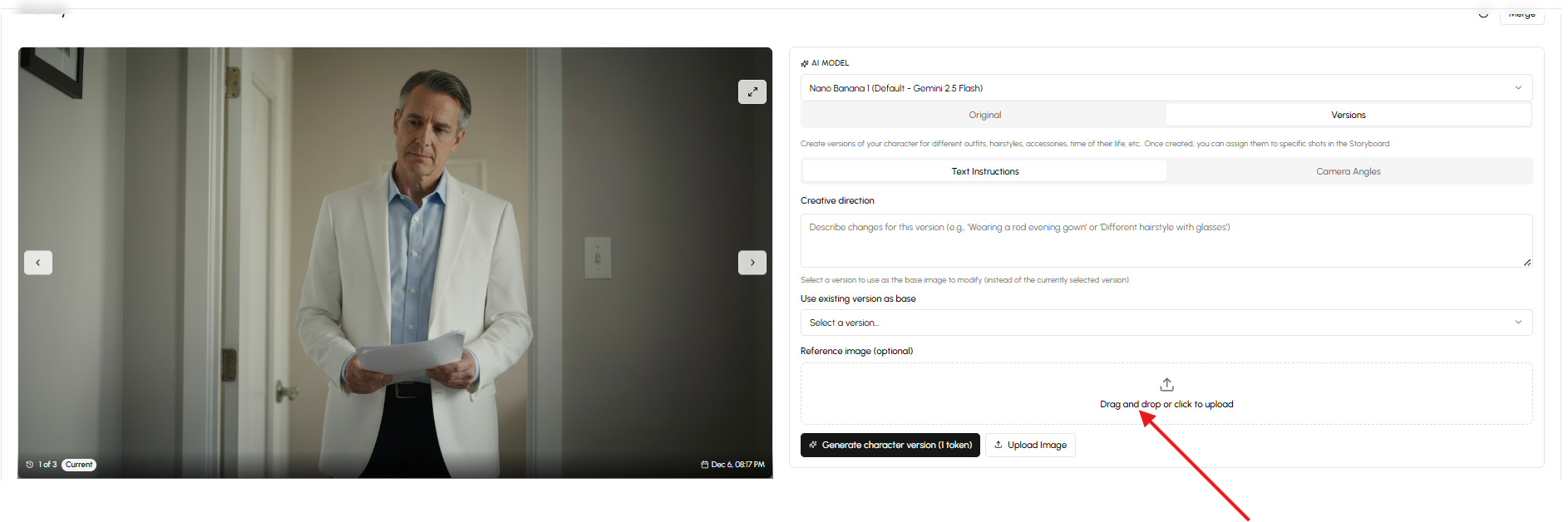
-
Click Generate Character Versions to let the AI create your new variations.
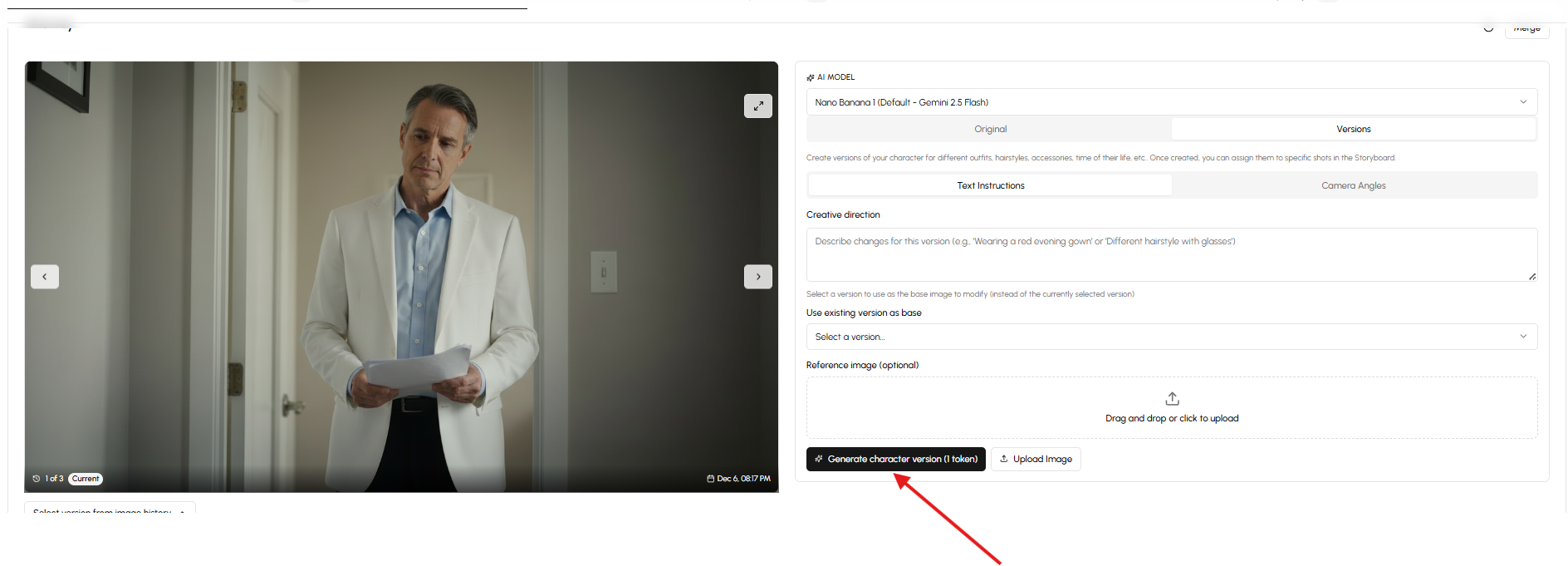
This is perfect for styling changes, expression adjustments, costume variations, or any unique creative direction.
Option 2: Camera Angles
Use this option when you want your character reproduced from different perspectives.
- Choose the angle(s) you want to generate.
- The tool will create your character in those views, helping you maintain consistent angles across your scenes.
This is especially helpful for storyboard planning or multi-shot sequences.

After Your Version Is Generated
Once your new version is ready, you can:
- Navigate to any shot inside your storyboard
-
Click the "version icon" right beneath your character name
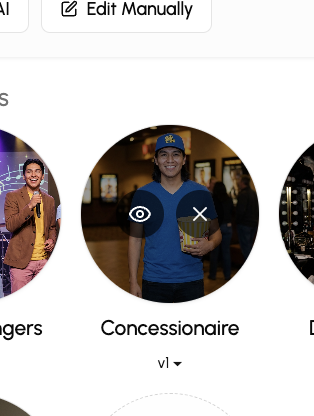
- Then, select the version of the character that you want applied to the shot. The version is the one that will be used to generate the start frame.

- This is perfect for when you want characters to have different wardrobes and more
Very Important Note
The same version-creation process applies to:
- Locations
- Objects
Simply follow the exact same steps when generating variations for these elements.